 Keyword Search
| Document Version | v1 |
|---|---|
| Document Last Updated | 8/19/25 |
| Software Version Documented | V10 |
Keyword Search Using UD Classifications
Enabling the ability to use values in the UD Classification fields as keywords to search for part numbers when entering quotes and/or orders.
Administrator Settings
Admin > Administrator > Item Search tab
-
The user will select a field from the dropdown
-
Click the plus button, and it will appear on the grid below it.

-
The only options will be the 5 UD classification fields and will display as defined in Item Manager - Classifications tab
-
The default Rank should be Normal, rank value 50
-
Ranking can be changed
-
Options are
-
Highest, rank value 700
-
High, rank value 500
-
Normal, rank value 50
-
Low, rank value 20
-
Lowest, rank value -1
-
-
The user can highlight an existing field and then click the minus button to remove it from the grid
-
Then in the order form grid, in the Quick Item Search, the user can type in a word that is in the indexed field for the part # they need, and the item/s with that word in that field will appear, depending on the rank set up in the background.
-
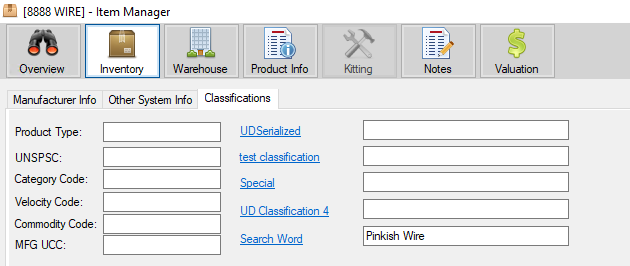
For example, this item code has these values in ud classification field 5 (defined as “Search Word” in this example).
-
Please be sure to test the ranking and indexed fields for best match, if the value is “pinkish wire” typing pink, wire, wire pinkish, etc will find the items.
